No water eject in Settings or Control Center
iPhone has no water eject setting under any name, and Apple offers no water control for Control Center. What people remember is usually something else. Apple Watch has Water Lock, whose unlock tones push water out of the watch speaker, and videos of it are everywhere. Community shortcuts named Water Eject sit on a Home Screen like a built-in app. And the liquid-detection alert looks like a system water feature. None of them is an iPhone setting. Apple's own steps for a wet iPhone contain no sound at all: unplug, tap the phone gently against your hand with the connector facing down, and leave it somewhere dry with some airflow. The physics of the watch does carry over, though: a low tone moves the iPhone's speaker membrane far enough to throw droplets out through the grille. Anything that plays that tone is something you add yourself.
What iPhone does have: the liquid-detection alert
Plug a cable or accessory into a wet port and iPhone shows Liquid Detected in Lightning Connector or Liquid Detected in USB-C Connector, then stops charging through it. It is a safety check on the connector pins, because current across wet pins corrodes them. It does not drain, heat or vibrate anything. Apple's steps: unplug, tap the phone connector-down against your palm, leave it in a dry area with airflow, and try charging again after at least 30 minutes; if the alert returns, allow up to a day. The Emergency Override button charges anyway and is meant for real emergencies only. The alert also says nothing about the speaker, which can be wet while the port is dry, and the other way round.
Water resistance is a seal, not a drain
iPhone 7 and later are rated IP67 or IP68, and recent models are rated for a maximum depth of 6 meters for up to 30 minutes in fresh water. The seals keep water out of the main enclosure; they do not move water anywhere. The speaker grille, the microphone holes and the port are open by design, so water that gets into the small space behind the speaker mesh stays there until it evaporates or something pushes it out. That is why a phone can work perfectly after a dunk yet sound muffled for hours. Apple notes that the resistance is meant for accidental exposure and decreases with normal wear, and liquid damage is not covered by the standard warranty; AppleCare+ may cover it for a service fee.
How to eject water from iPhone without a built-in button
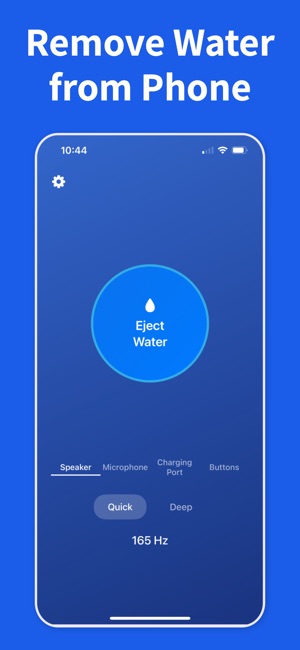
Disconnect AirPods, CarPlay or any Bluetooth speaker so the sound plays from the phone, take off a case that covers the bottom edge, and hold the iPhone with the bottom speaker facing down. Turn the system volume up to at least 70% (below that, Water Remover shows Volume Too Low and won't start), open the app, choose the Speaker target, and run Quick, a 165 Hz tone for 5 seconds, or Deep, a 100 to 800 Hz sweep for 15 seconds. The phone vibrates for the whole tone. You may see a fine spray at the grille. Test with a voice memo, and repeat once or twice if it still sounds dull. Every phone target plays through both built-in speakers, the bottom loudspeaker and, more quietly, the earpiece at the top; there is no separate mode for the earpiece.
Putting an eject tone on a button
If you want something that feels built in, iOS lets you tie a shortcut to hardware. On iPhone models with an Action button, open Settings > Action Button and choose Shortcut. On iPhone 8 and later you can use Back Tap instead: Settings > Accessibility > Touch > Back Tap, then pick Double Tap or Triple Tap and a shortcut. Water Remover's Eject Water action appears in the Shortcuts app, and Siri starts it with the phrase "Eject water from my phone". Either way the app opens and starts the selected mode, so it still has to finish on screen. Long-pressing the app icon on the Home Screen also offers quick actions.
What no water eject can do
A tone moves water that sits behind a speaker grille and, at most, loose drops in the openings near it. It does not dry the charging port, the inside of the phone, the camera or the buttons, and it cannot reverse corrosion. A microphone has no speaker cone for the tone to drive, so a muffled mic needs drying time. For a wet port, follow the alert steps and leave the phone in moving air; Apple advises against rice, hair dryers and other heat, compressed air, and cotton swabs or paper towels in the openings. If the speaker still distorts after a day of drying and a few passes, or the alert never clears, the phone needs a repair rather than more sound.